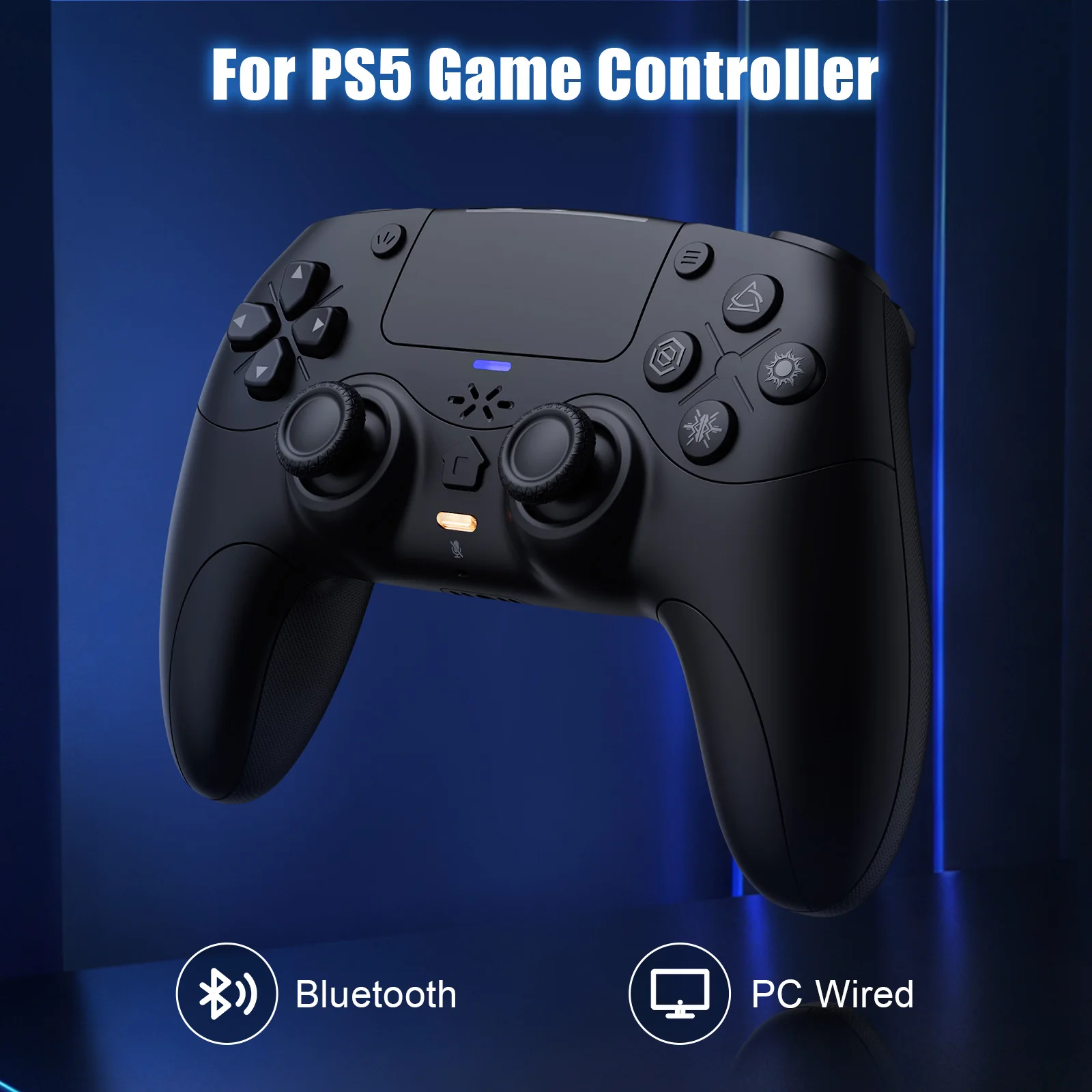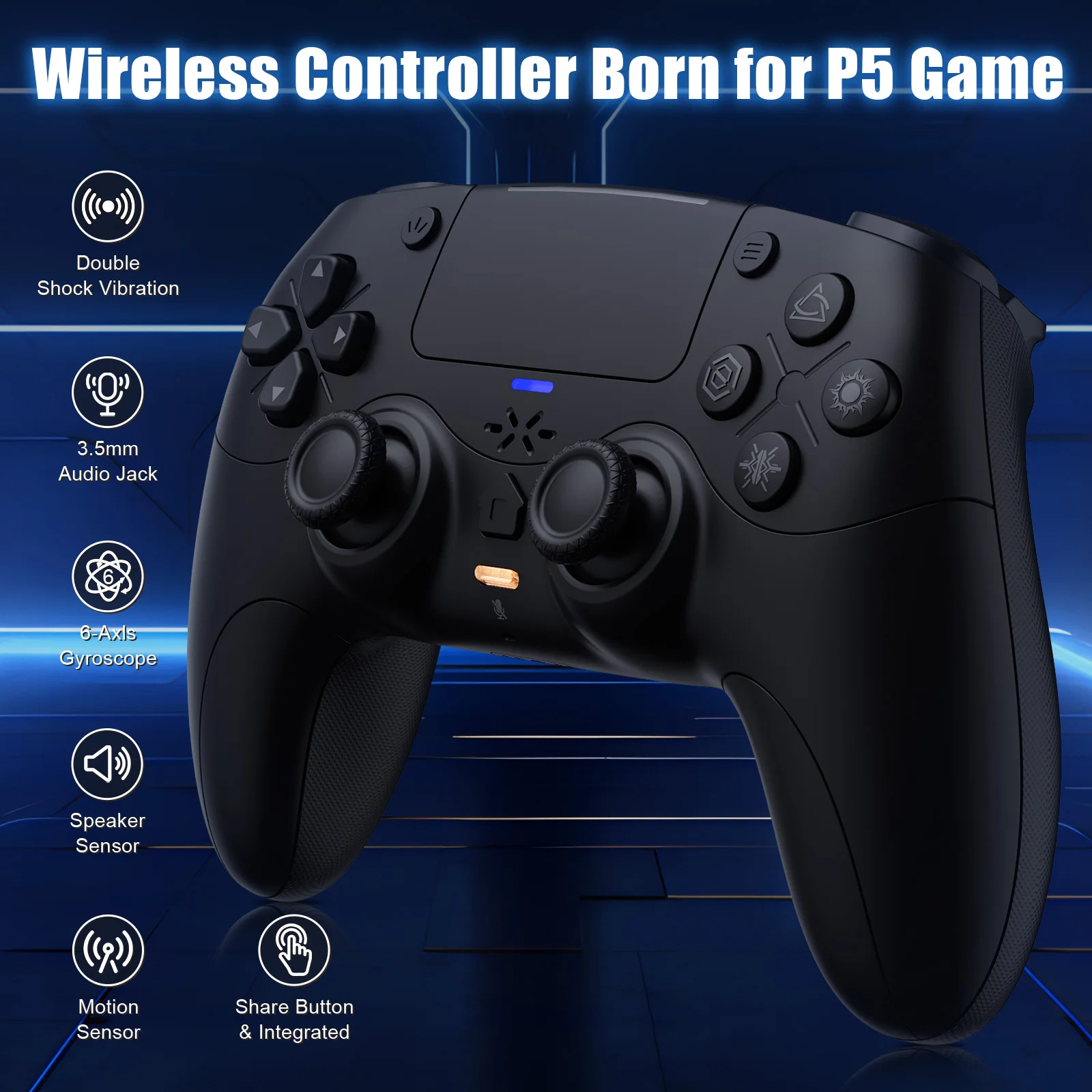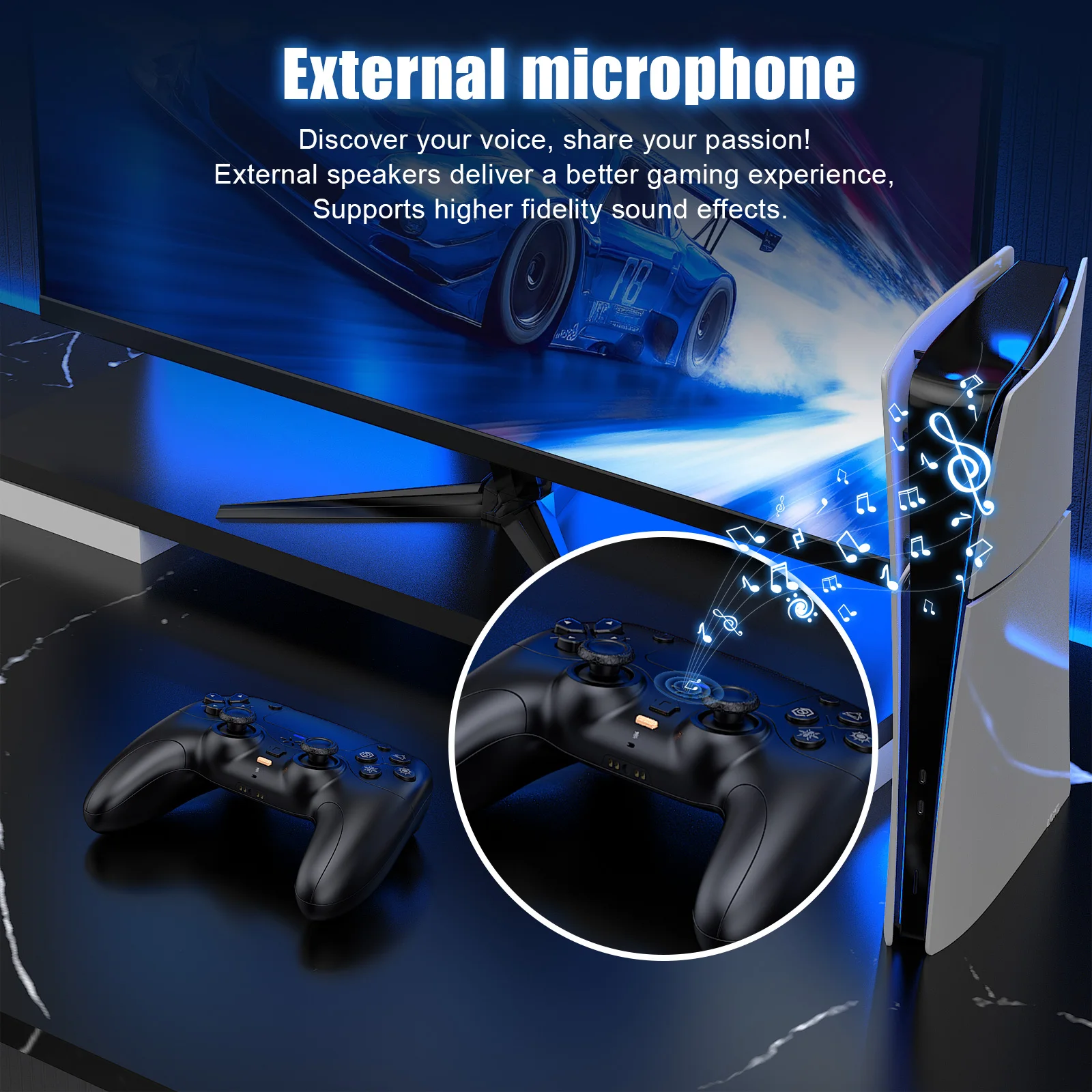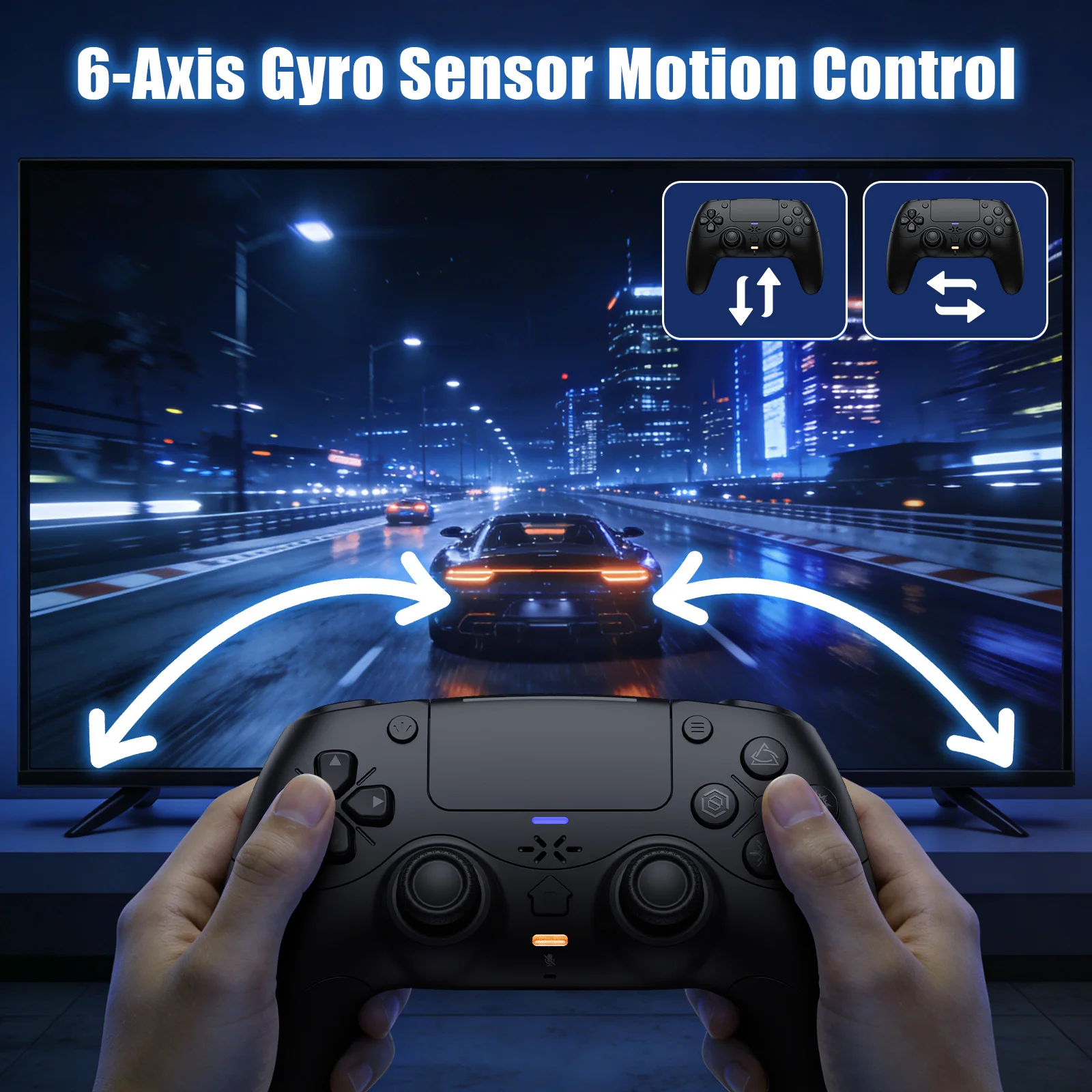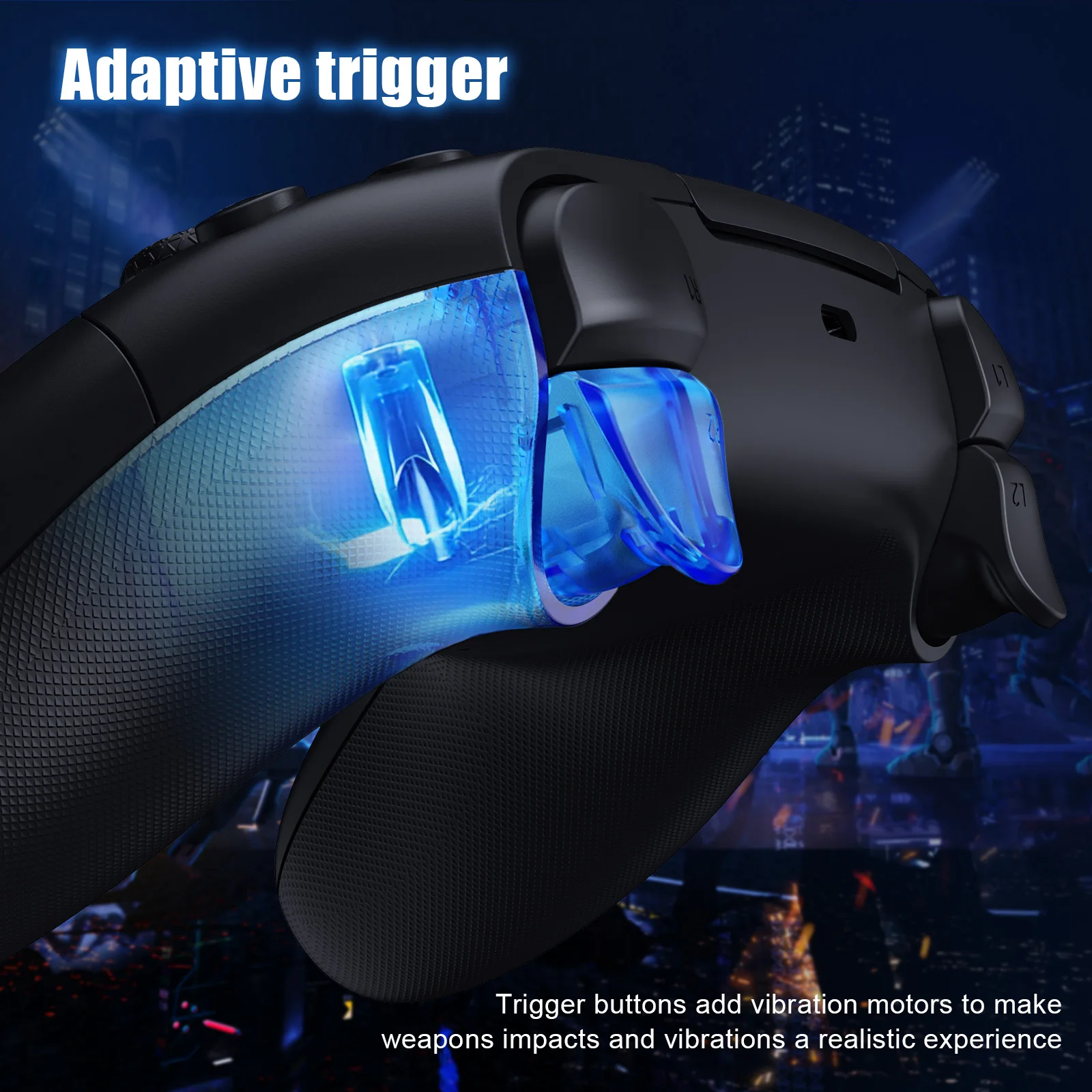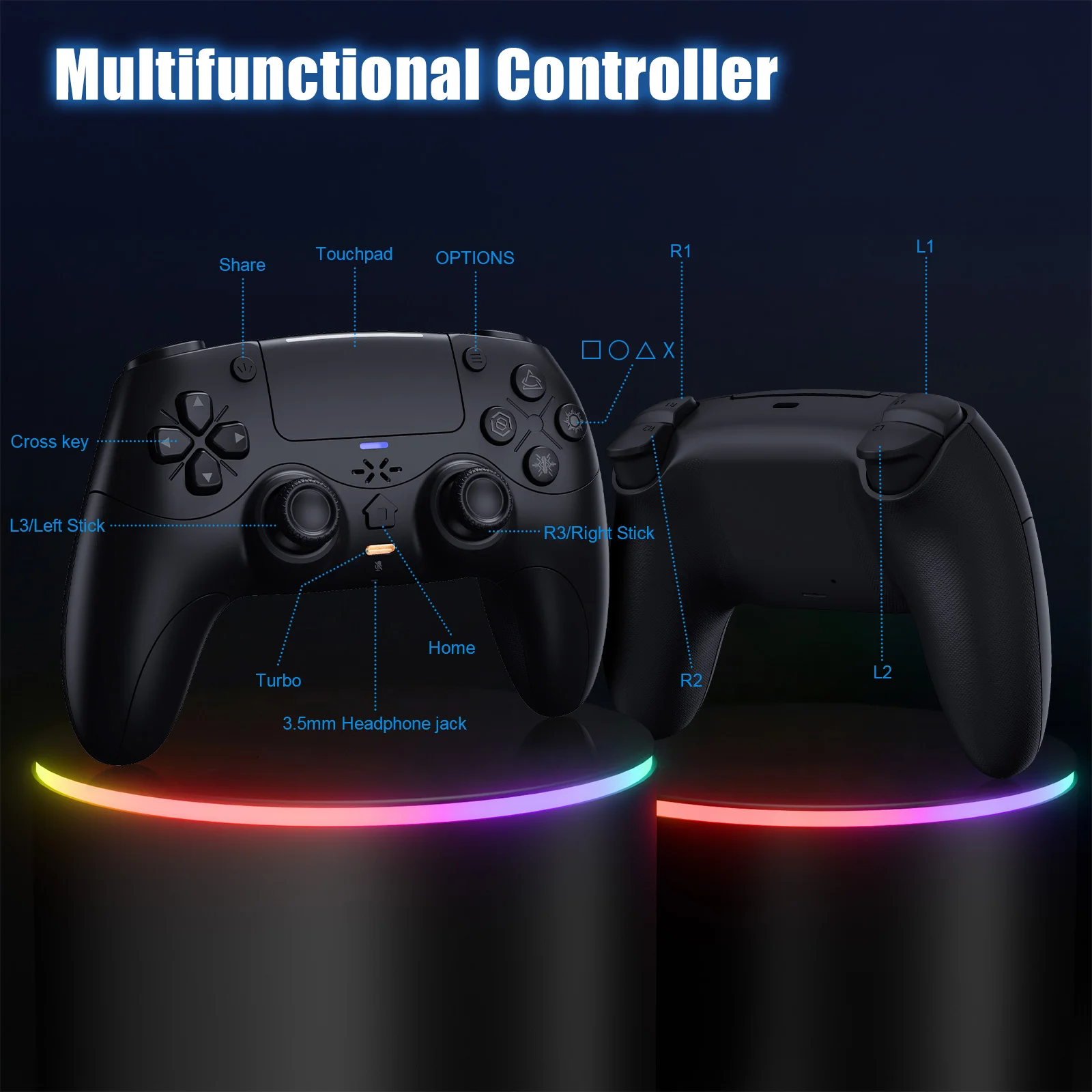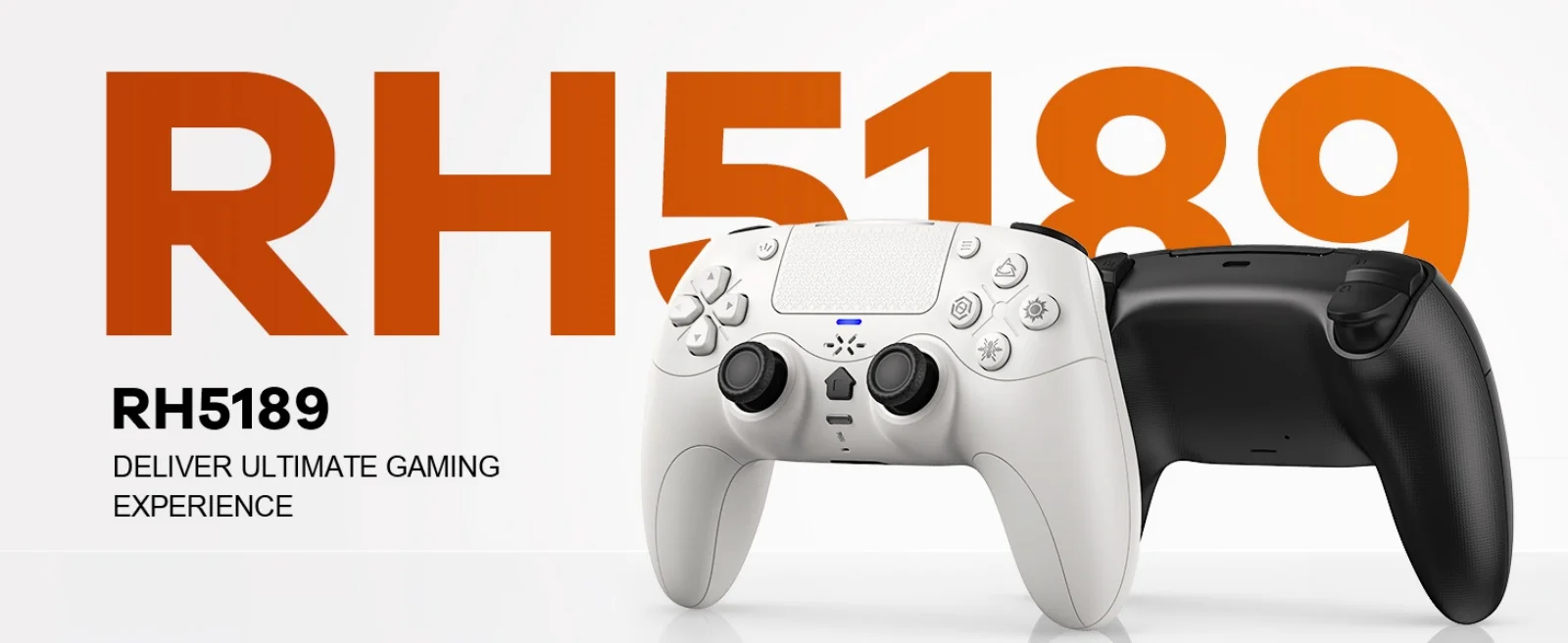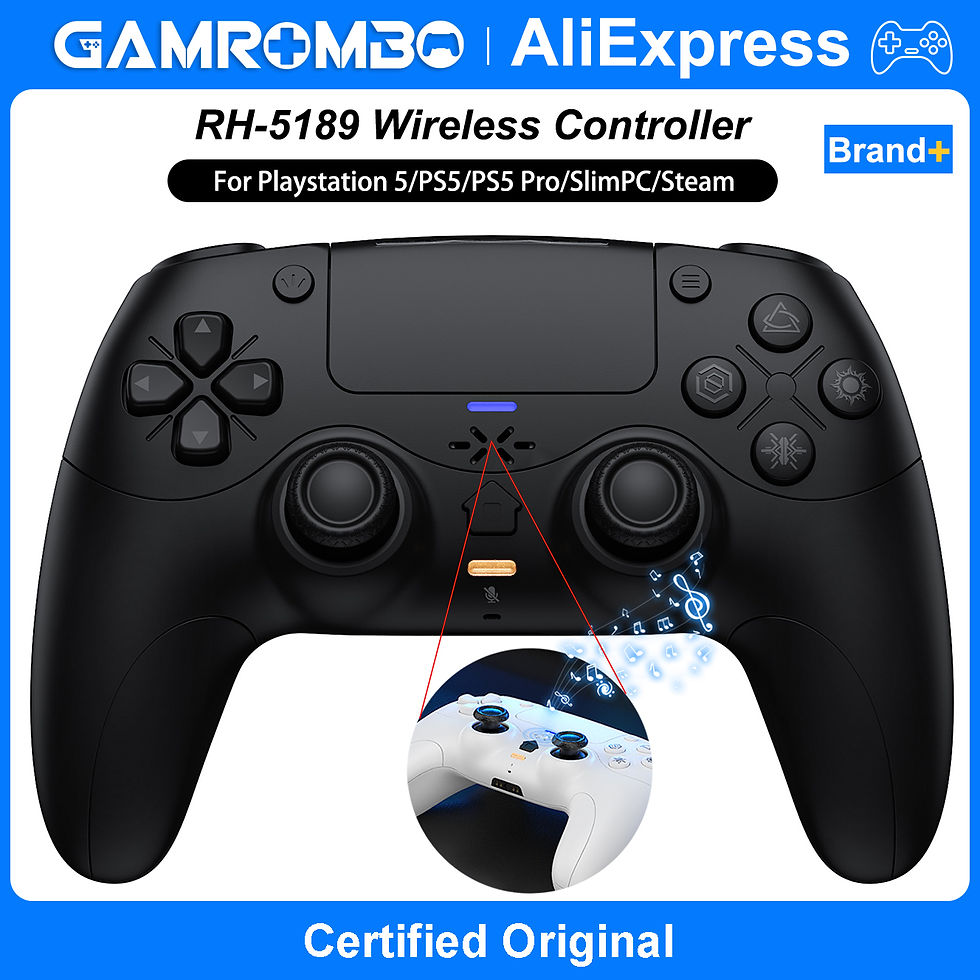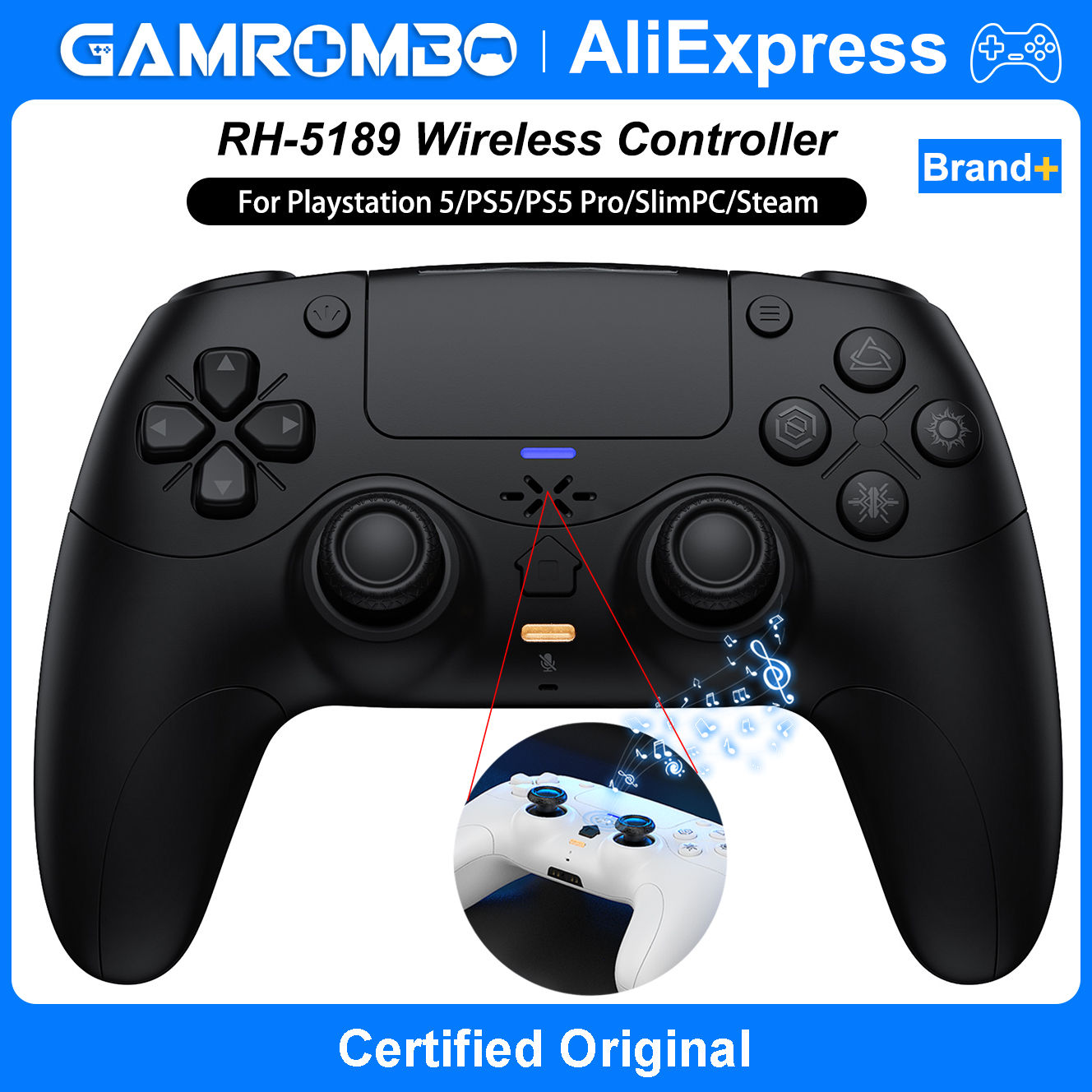

For Playstion5/PS5/PC/iOS/Steam Gamepad BT Wireless Controller Dual Vibration Ma
£30.96Price
SPECIFICATIONS
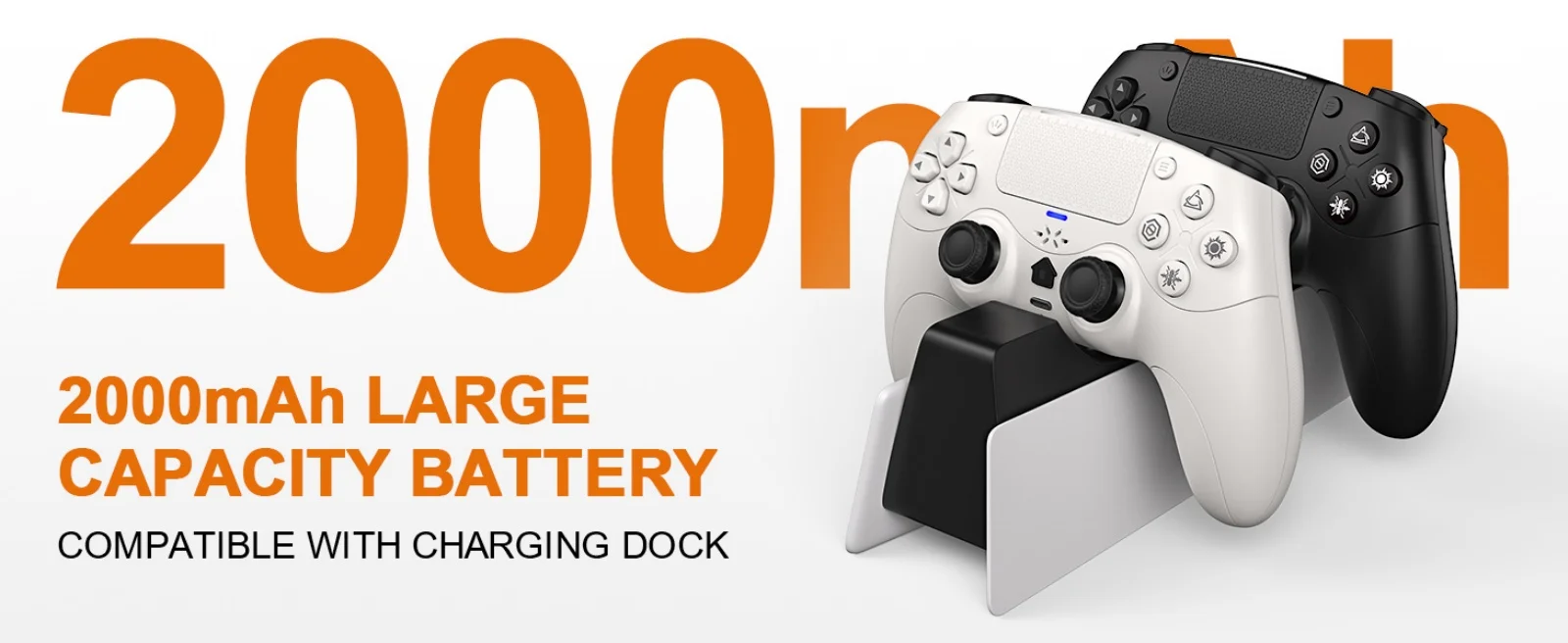
Battery Included: Yes
Brand Name: GAMROMBO
Certification: CE
Compatible Brand/Model: Sony
Compatible Platform: PC,steam
Compatible Sony Model: PS5 Slim,PS5 Pro,ps5
High-concerned chemical: None
Model Number: RH-5189
Origin: Mainland China
Package: Yes
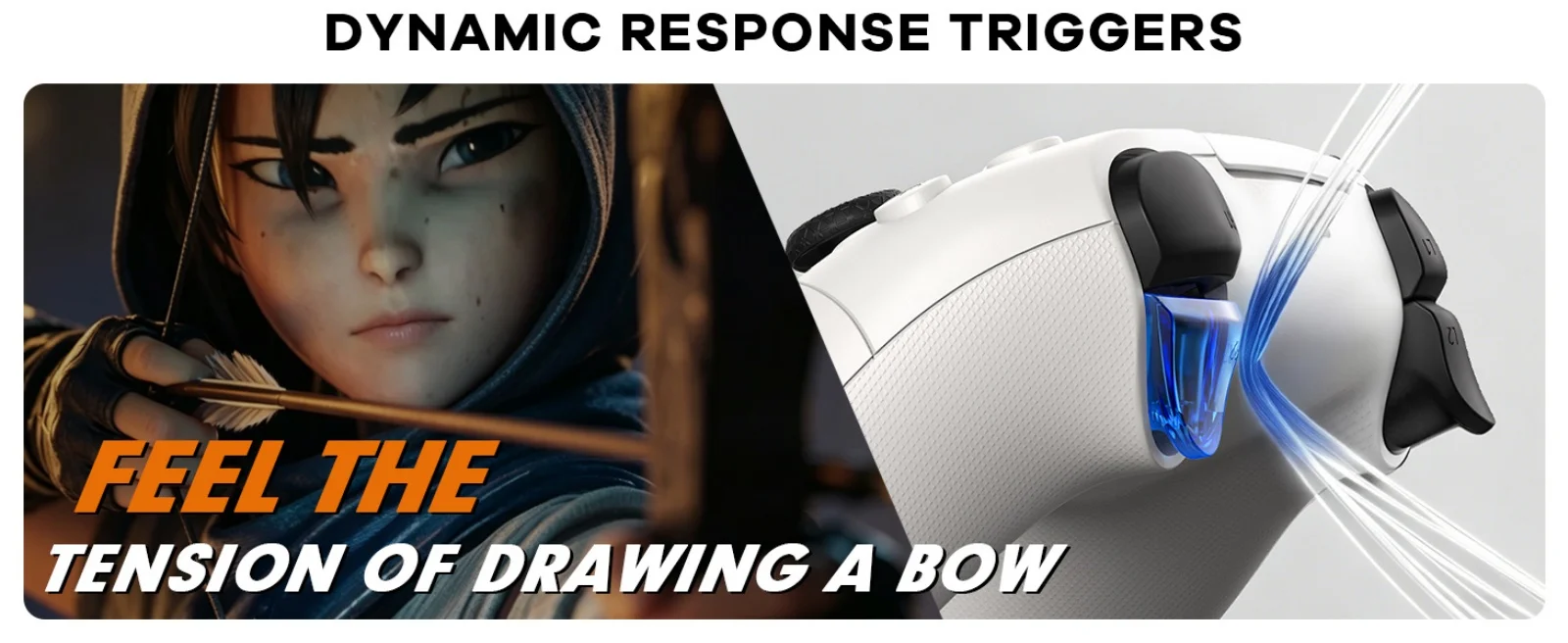
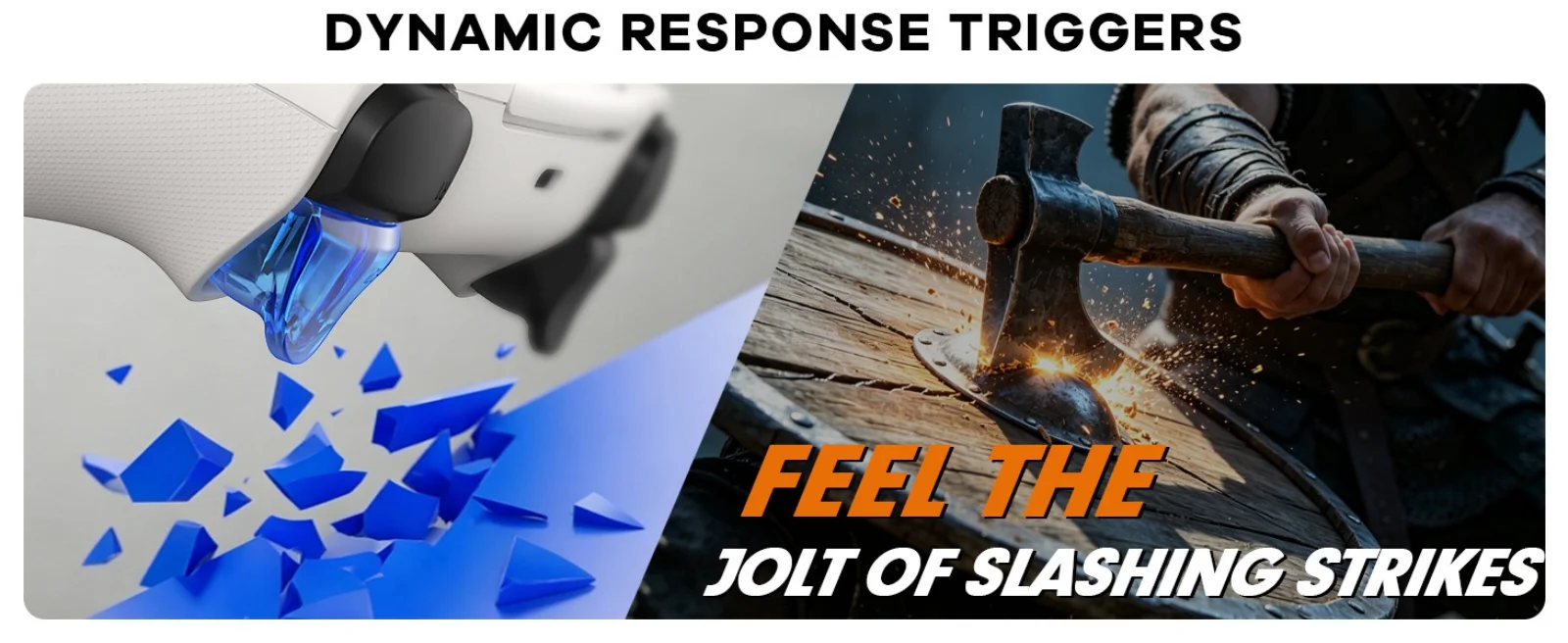
Trigger Button Type: Linear
Type: Gamepads
PS-5 Host Connection Method:
👉️!!! Note: The first time a new controller connects to PS-5,a wired
connection is required.1.When the controller is turned off, connect it to PS-5 via USB cable, then press the "PS button" to connect to PS-5.2.When the wired connection is successful, disconnect the USB cable and press the "PS" button to connect to PS-5 wirelessly.PC Wired Connection:
👋1.Power on the PC2.The controller connects to the computer via a USB-C cable.Note:1. Connect the controller to your computer via USB cable. The computer will automatically install the driver. The controller supports both PS-5 wired audio and
X-input modes. After connecting via USB wired connection, it defaults to PS-5 wired audio. Press and hold the + button for 3 seconds to switch to X-input mode.2. PC display names:PS-5 Wired: DualSenes Wireless Controller --- Light is blueX-input: PS-5 Controller for Windows --- Light is greenBluetooth Connection:
For PC/iOS/MAC and Steam Deck
🎮️1.Turn on Bluetooth on the PC.2. With the controller powered off, first press and hold this button, then press the PS combination button ( +PS) for 3 seconds. The indicator light will flash, and the controller will enter pairing mode. Then release the button.3.Search for Bluetooth "DualSenes Wireless Controller" and click to connect.4.The controller supports Apple devices with iOS13.0 and above; the Mac platform supportswired connection and wired audio functionality.5.Steam Deck supports wired connections and wired audio functionality (when connected to Steam Deck in PC mode, the mode can be switched).6.A Type-C to USB adapter cable is required for wired connection between MAC and Steam Deck.Mute Function:
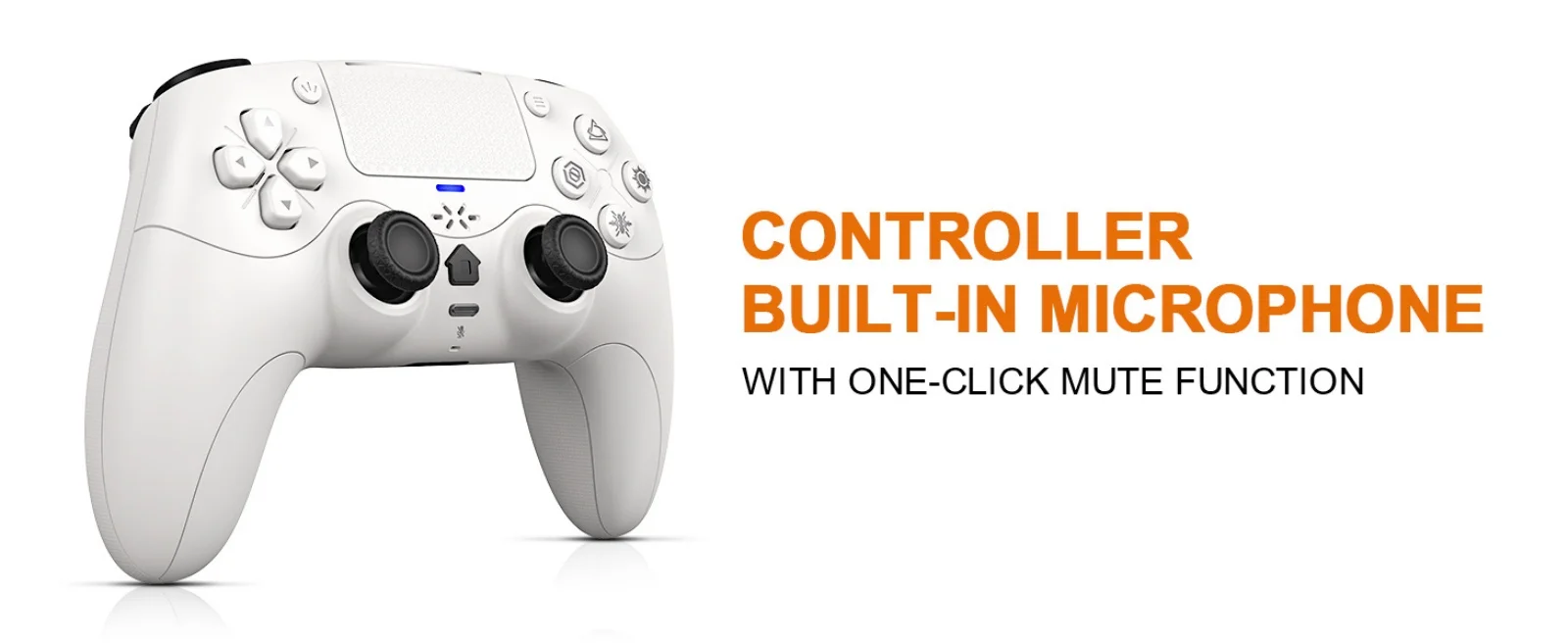
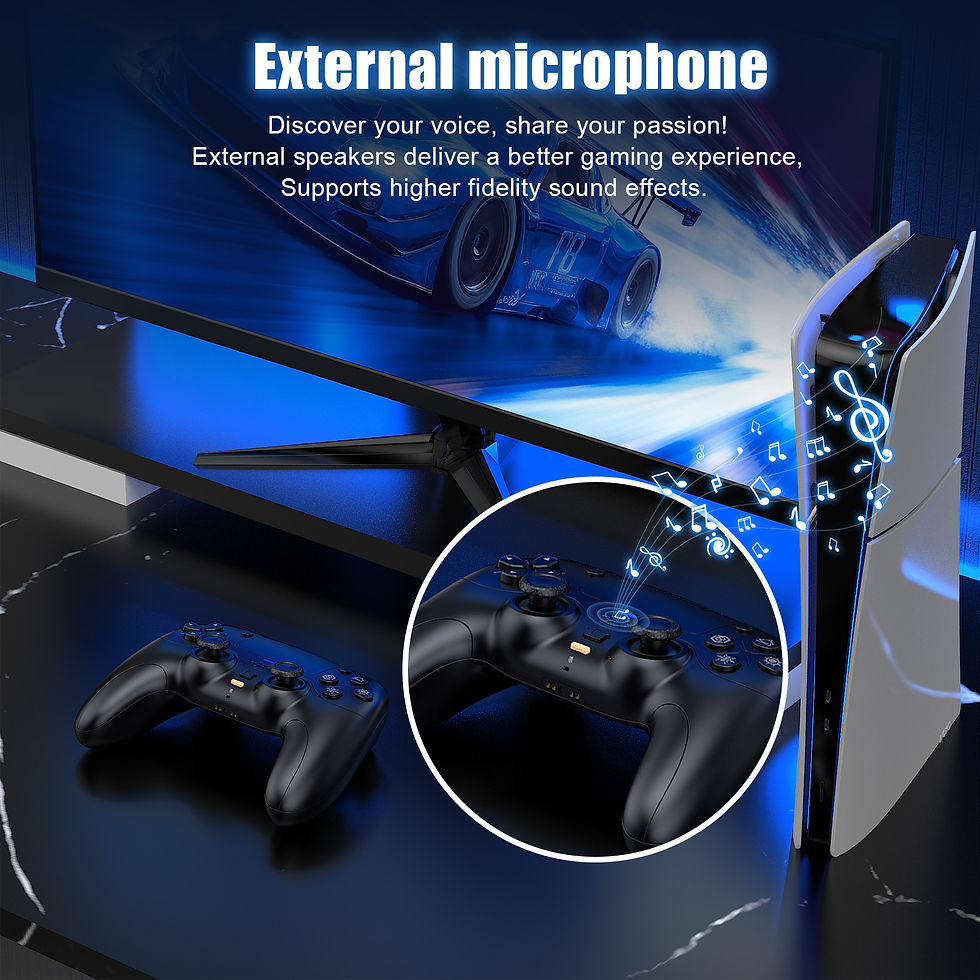
1. Briefly press the mute button; the mute indicator light will remain on, indicating that the controller's microphone is muted.2. Press and hold the mute button; the mute indicator light will flash in a cycle, indicating that all audio (including vibration) from the controller is muted.Linear Motors:
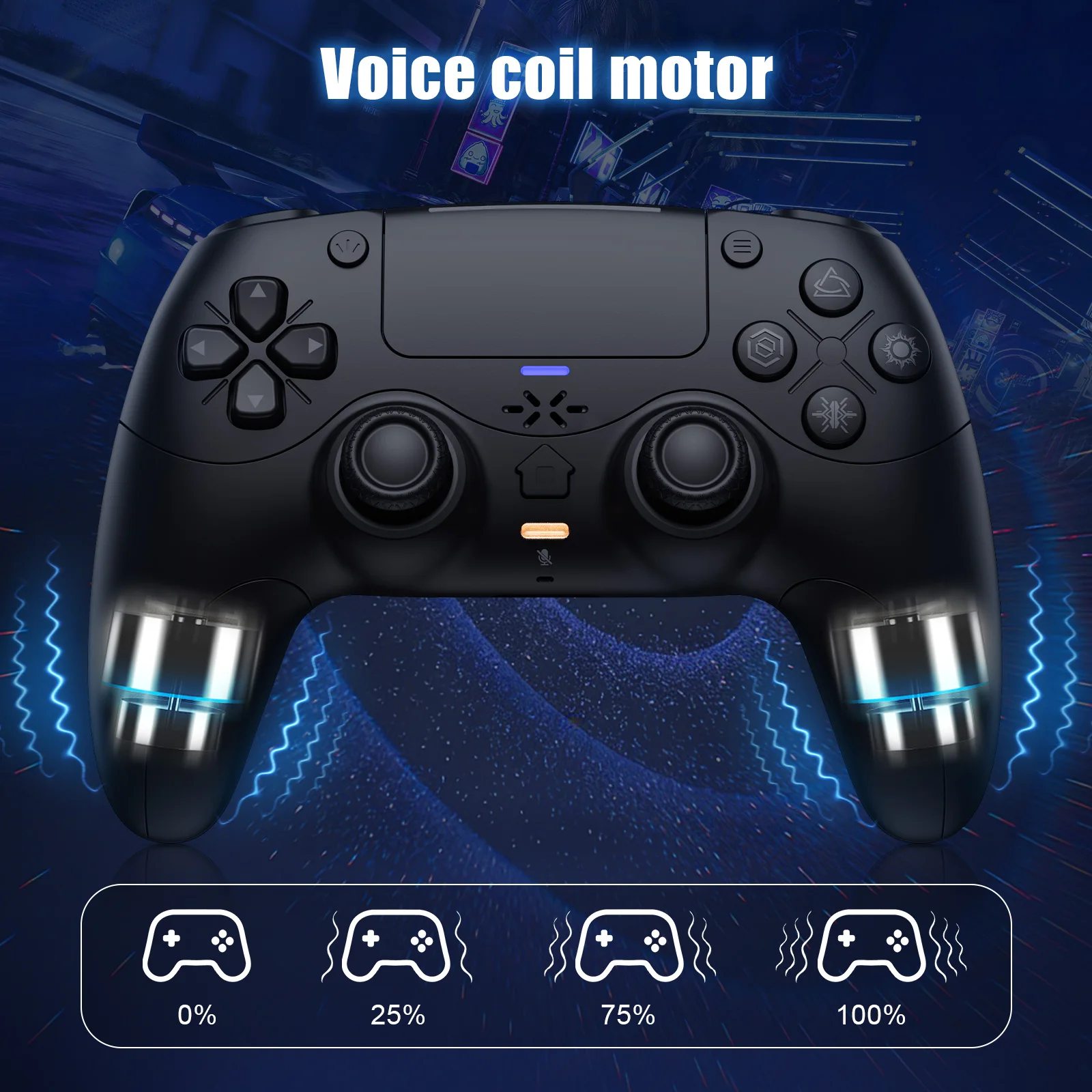
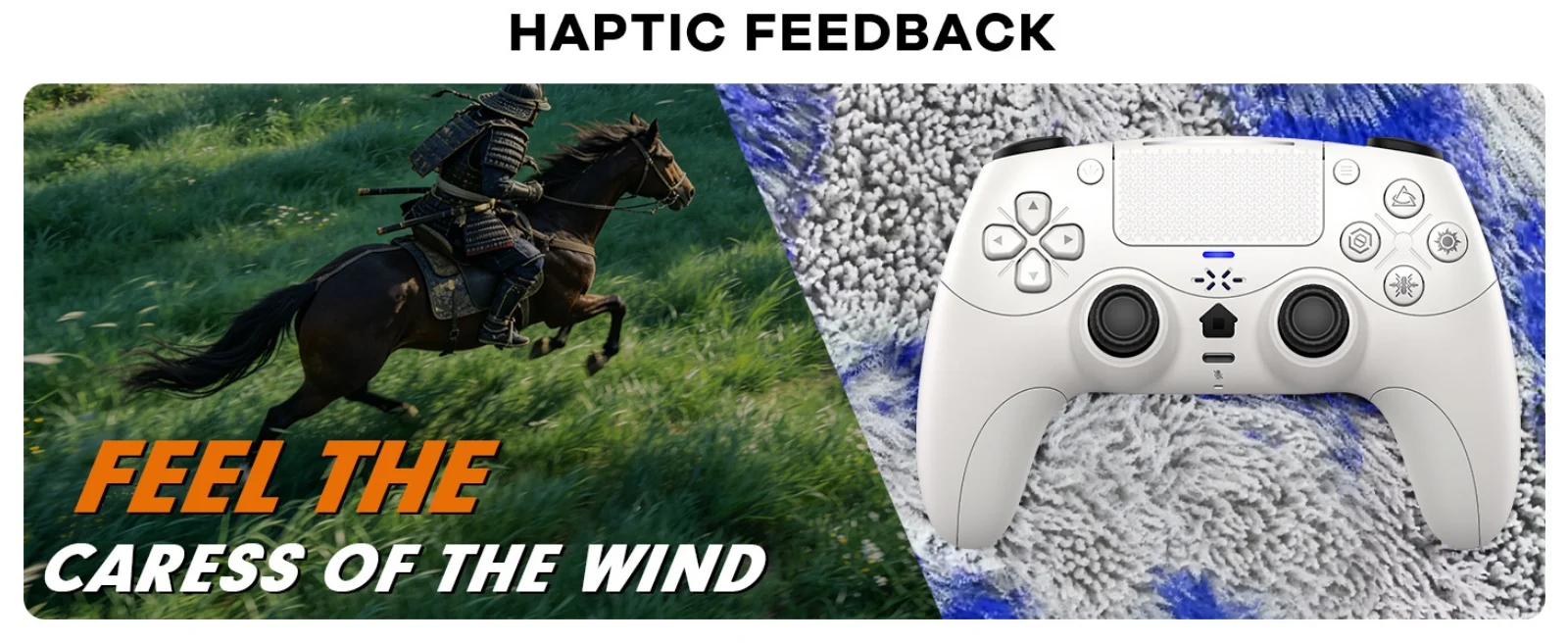
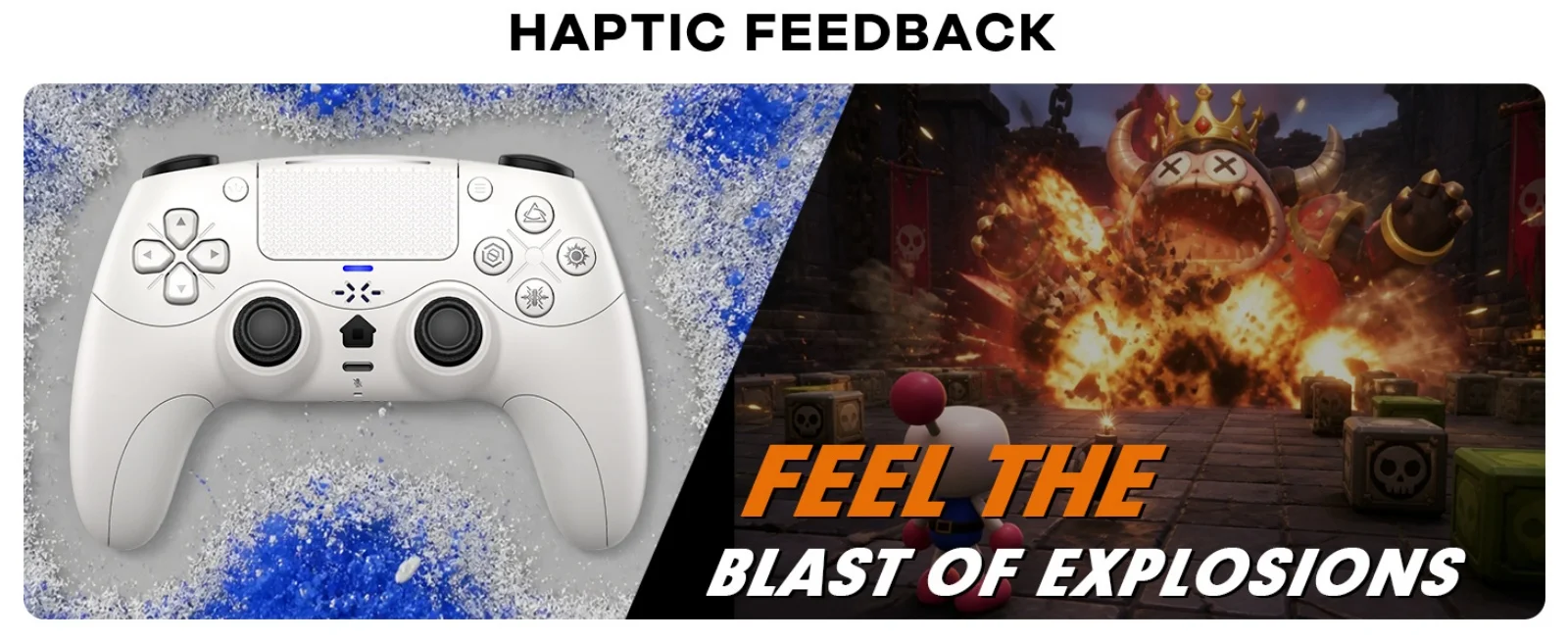
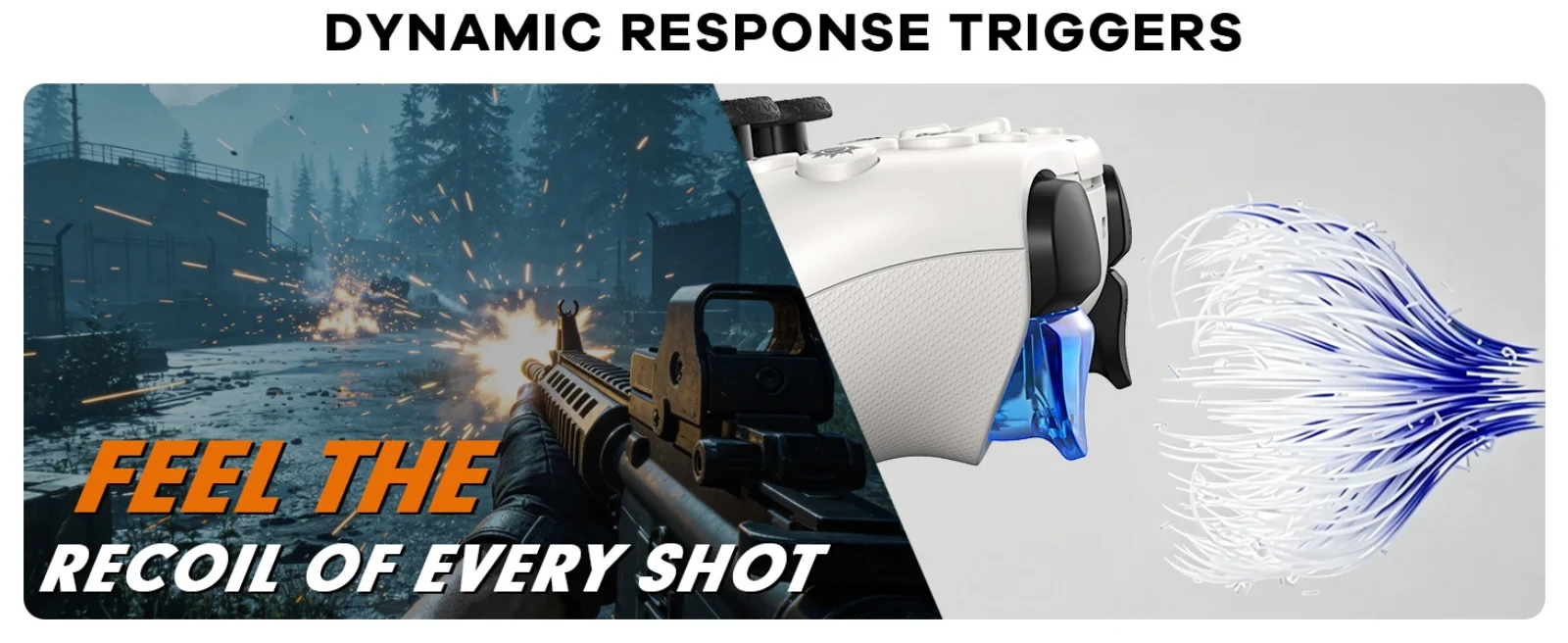
This controller features a linear motor that generates vibrations ranging from extremely weak to strong, adapting to different gaming scenarios and providing users with a better experience.Triggers and 3D Joystick Calibration:
1.Hold the buttons,then use the USB cable and power on.The Home button will flash quickly.2. Press L2/R2 triggers 2 - 3 times, rotate those two 3D joysticks 2 - 3 circles each.Then long -press X key for 1 second to confirm. The Home key will stay on.Calibration is done; power off to save.